Step-by-Step Guide to Highlighting Code Syntax in React/Next.js with react-syntax-highlighter
•4 min read
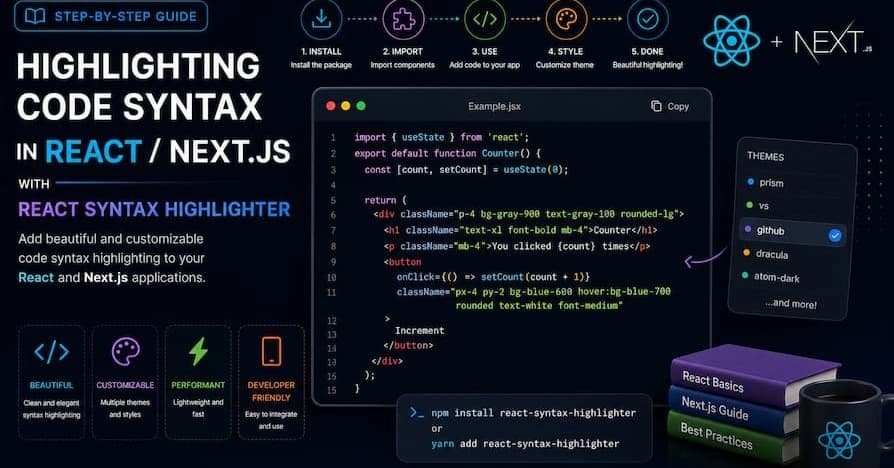
Are you a React developer looking to enhance the visual appeal of your code snippets? Look no further than the power of React Syntax Highlighter. With its ability to transform plain text code into beautifully styled and highlighted displays, React Syntax Highlighter is a must-have tool for any coder looking to showcase their work in an engaging and professional manner.
Whether you're a beginner or an experienced developer, mastering code display is essential. React Syntax Highlighter allows you to create clean and visually appealing code displays that will wow your audience. Don't settle for plain, uninspiring code snippets. Unleash the power of React Syntax Highlighter and take your code presentation to the next level.
What is React Syntax Highlighter?
react-syntax-highlighter is a powerful React library that provides a simple way to apply syntax highlighting to code snippets. It leverages popular syntax highlighters like Prism or Highlight.js to render code with proper syntax coloring, which improves readability and enhances the visual appeal of code samples in your applications.
This tool is particularly valuable for developers writing documentation, technical blogs, or educational content where code snippets need to stand out. Additionally, it provides multiple themes and customization options to ensure the code snippets match the design of your application.
Installing React Syntax Highlighter
To get started with react-syntax-highlighter, you first need to install the package in your project.
bash
# Using npm
npm install react-syntax-highlighter --save

# Using yarn
yarn add react-syntax-highlighter
Once installed, you are ready to use it in your React or Next.js application.
Basic Usage in a React Application
Here's a simple example of how to use react-syntax-highlighter in a basic React component:
Import the Component and Styles:
typescript
import SyntaxHighlighter from "react-syntax-highlighter";
import { atomDark } from "react-syntax-highlighter/dist/esm/styles/prism";

export default function App() {
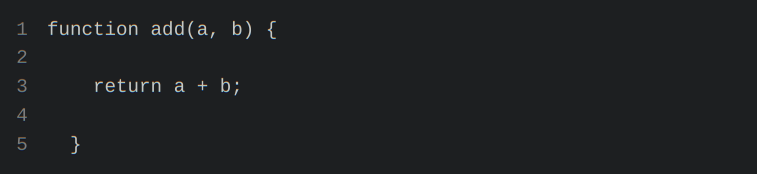
  const codeString = `function add(a, b) {
    return a + b;
  }`;

  return (
    <main>
      <h1>React Syntax Highlighter</h1>
      <SyntaxHighlighter
        language="javascript"
        style={atomDark}
        showLineNumbers
      >
        {codeString}
      </SyntaxHighlighter>
    </main>
  );
}
The above code will appear like this

Explanation
-
Prism vs. Highlight.js:
react-syntax-highlightersupports both Prism and Highlight.js libraries. In this example, we're using Prism, which is known for its extensive language support and themes. -
Themes and Styles: You can import any of the predefined themes available. Here, we're using the
atomDarktheme from Prism. -
Language Prop: The
languageprop specifies the language of the code snippet, allowing the highlighter to apply the appropriate syntax highlighting rules.
Advanced Usage in Next.js
Using react-syntax-highlighter in a Next.js project follows a similar approach. Here’s how you can integrate it:
Create a Component in Next.js:
typescript
// components/CodeSnippet.js
import React from 'react';
import { Prism as SyntaxHighlighter } from 'react-syntax-highlighter';
import { atomDark } from 'react-syntax-highlighter/dist/esm/styles/prism';

const CodeSnippet = ({ code }) => (
  <SyntaxHighlighter language="jsx" style={atomDark}>
    {code}
  </SyntaxHighlighter>
);

export default CodeSnippet;
Use the Component in a Next.js Page:
typescript
// pages/index.js
import React from 'react';
import CodeSnippet from '../components/CodeSnippet';

const code = `
const HelloWorld = () => {
  return <h1>Hello, Next.js!</h1>;
};
`;

const Home = () => (
  <div>
    <h1>Code Highlighting in Next.js</h1>
    <CodeSnippet code={code} />
  </div>
);

export default Home;
Server-Side Rendering:
Since Next.js uses server-side rendering, there may be concerns about how syntax highlighting is rendered on the server. Fortunately, react-syntax-highlighter is compatible with Next.js, and you don’t need to perform any additional configuration to support SSR.
Customizing the Syntax Highlighter
react-syntax-highlighter offers several ways to customize your code display:
Custom Styles:
You can write your own custom styles or change existing ones. Here's an example of how to write a custom style::
typescript
const customStyle = {
  'code[class*="language-"]': {
    color: '#d4d4d4',
    background: '#1e1e1e',
    fontFamily: '"Fira Code", "Fira Mono", monospace',
    fontSize: '14px',
    lineHeight: '1.5',
  },
};

<SyntaxHighlighter language="javascript" style={customStyle}>
  {codeString}
</SyntaxHighlighter>
Themes:
- Choose from several built-in themes such as
atomDark,vsDark,prism, etc. You can dynamically change the theme based on user preferences or app settings.
Additional Tips for Using React Syntax Highlighter
-
Lazy Loading: If your application has many pages with syntax highlighting, consider lazy loading the
react-syntax-highlightercomponent to improve performance. -
Markdown Integration: If you're using Markdown to write your content, consider using
remark-prismor similar plugins to automatically highlight code blocks. -
Accessibility: Make sure the color contrast of your syntax highlighting meets accessibility standards to ensure all users can read the code.
Conclusion
React Syntax Highlighter is a powerful tool for any developer looking to improve the presentation of code snippets in their applications. With its wide range of themes, customization options, and compatibility with both React and Next.js, it's an invaluable resource for creating professional-looking code displays. By incorporating this library into your projects, you can make your code more readable, engaging, and visually appealing.
So, why settle for plain and boring code snippets? Try react-syntax-highlighter today and take your code presentation to the next level!